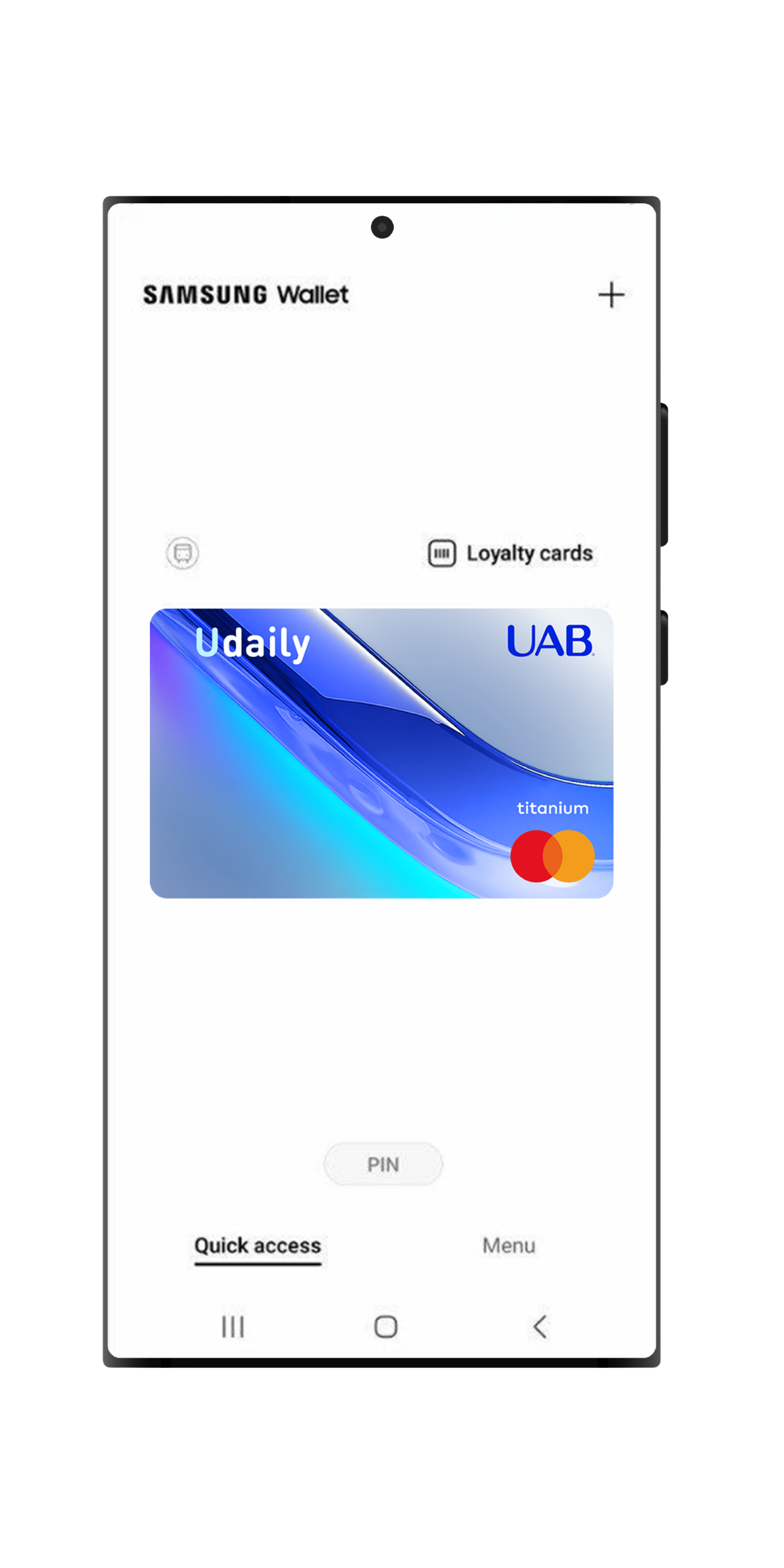
SAMSUNG PAY


Key Features
Every transaction is protected with security and privacy, so your information stays safe. Samsung Wallet doesn’t keep your payment information on their servers and your account details are never stored on your phone or shared with merchants.
Samsung Wallet offers you a quick and convenient way to make contactless payments. Already built into your Samsung devices, the set-up is easy and hassle-free.
You can use Samsung Wallet to tap and pay everywhere Samsung Pay is accepted and can be widely used in-stores, online and in your favorite apps.
With Samsung Wallet you get the same benefits and protection as your physical card, with the convenience of making secure transactions on your Samsung device. Just select Samsung Pay at checkout and authenticate the purchase with your fingerprint, pin number or iris scan depending on your mobile device.
More to Explore


- Log on to your UAB Mobile App.
- Click on the Samsung Wallet tab.
- Choose the card you want to add to your Samsung Wallet.
- Click on the ‘Add to Samsung Wallet’ tab and follow the instructions.
- You have successfully added your card.
- Open the “Wallet” application on your Samsung device.
- Click the “Add to Samsung Wallet” tab.
- Click the “Payment card” tab.
- Click the “+ New credit or debit card” tab and follow the instructions.
- You have successfully added your card.