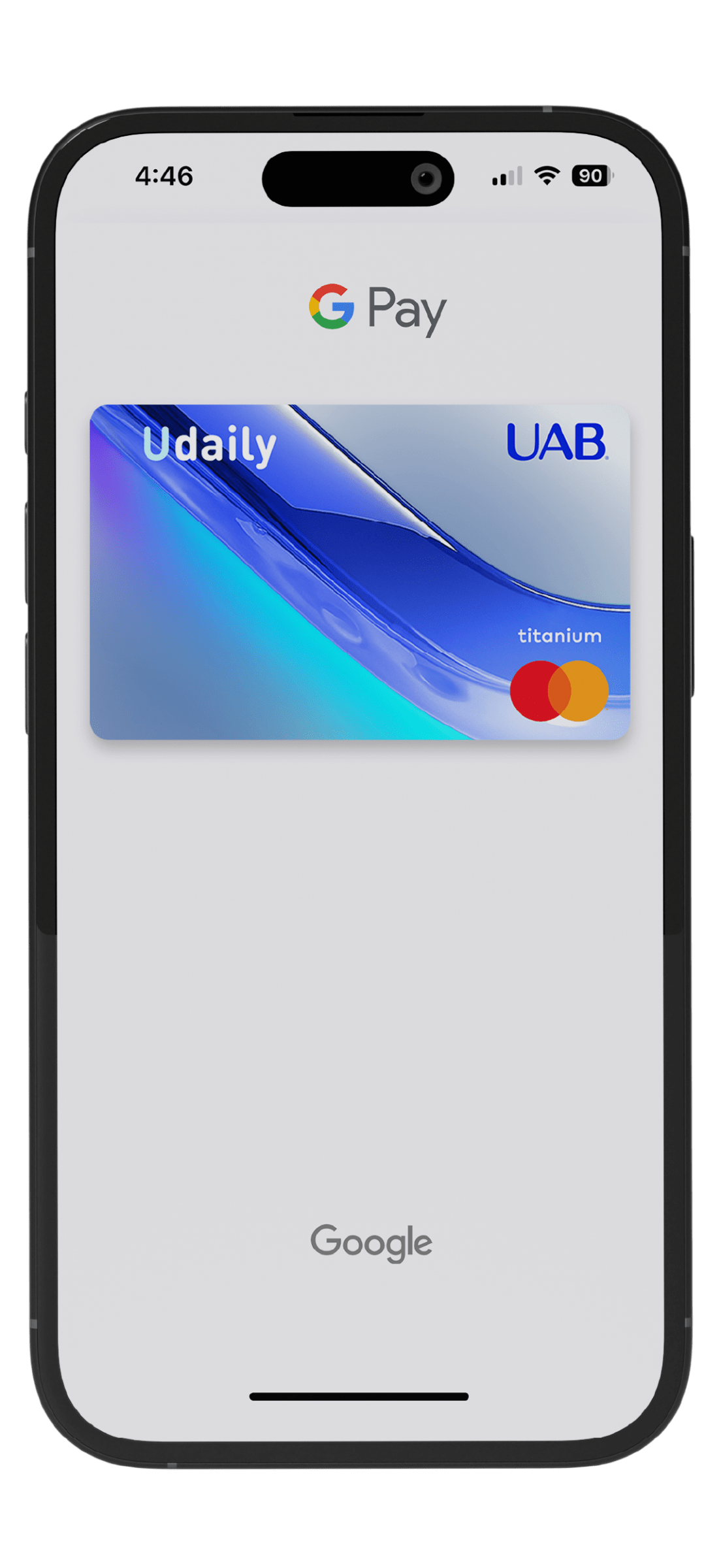
Google Pay


Key Features
Security and privacy are built into every part of Google Wallet™ to keep your essentials protected. When you tap to pay with your Android phone, Google Pay doesn’t share your real card number with merchants, so your payment information stays safe.
Google Pay enhances security with its Screen Lock feature, safeguarding Android users against unauthorized charges in case of loss or theft. While smaller payments don't require phone unlock, setting up NFC transactions that require device unlock adds an extra layer of security. Ensure this setting is activated in your phone's NFC preferences for a safer Google Wallet experience. To learn more and view payment limits, click here.
Google Pay offers you a quick and convenient way to make contactless payments. Already built into your Android devices, the set-up is easy and hassle-free. You can use Google Wallet to tap and pay everywhere Google Pay is accepted and can be widely used in-stores, online and in your favorite apps.
With Google Pay you get the same benefits and protection as your physical card, with the convenience of making secure transactions on your Android device. Just look for the GPay or contactless symbol at checkout in-store, app or online.
More to Explore


- Log on to your UAB Mobile App.
- Click on the Apple Pay tab.
- Choose the card that you want to add to your Apple Pay Wallet.
- Click on the “Add to Wallet” and follow the instructions.
- You have successfully added your card.
- Open the “Wallet” application on your Android device.
- Click the “Add to Wallet” tab.
- Click the “Payment card” tab.
- Click the “+ New credit or debit card” tab and follow the instructions.
- You have successfully added your card.